
x
Black Bar Banner 1
x

NEW: About Me Look — turn on a full-width dark About Me from your profile Configuration (Profile Page Upgrade). The Academy, profile feeds and Media Feed now read like the News Feed. See Subscriptions »

New: AI Blog Autopilot — free for the next 30 days. Switch it on by November 15th »

NEW: Smart Mail is live — free for every member. Send broadcasts, build lists and run autoresponders. Open Smart Mail »

New training: The Campaign Map. Watch it now »

A+ A−
Ads by Markethive - View All
The Blog Feed
The Blog Feed
» Blog Feed
Write a New Blog Post
Search Blog Status
Most Viewed
Most Recent
Most Shared
Alphabetical
Markethive Blog (default)
My Blog Posts
Friends' Blogs
Blog Categories
All
Advertising
Blockchain & Cryptocurrency
Business Development
Diet & Weight Loss
Environmental
Health and Wellness
History and Culture
Home and Garden
Marketing
Mentoring & Training
Money & Finance
Other
Political
Prayer & Religion
Programming & Technical
Real Estate
Search Engine Optimization
Social Media
Spirituality
Sports & Recreation
Transport
Travel & Events
Website Design
Blogging Tools & Assets
My Blog Info
Members Subscribed to You
Blogs You Are Subscribed To
Website Widget
Wordpress Plugin
Subscribe for Greater Services
Subscribe to one of many subscriptions, each one includes the previous ones.. Unlock powerful tools, advance features, to build a powerful reach.

Wondering How to Set Glance on Lock Screen in Samsung? Then Pay attention.

Posted by Jaykant Patil on November 06, 2024 - 10:14am


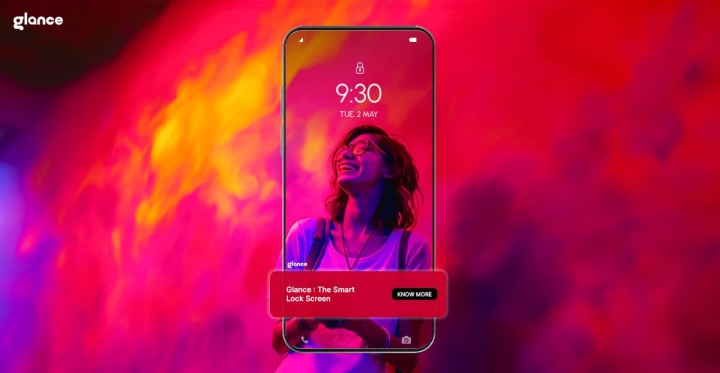
In the world of smartphone technology, the Glance Samsung lock screen has emerged as a game-changer for Android users, particularly those with Samsung devices. This innovative lock screen feature, designed by InMobi, has revolutionized how we interact with our phones from the moment we pick them up. 

If you're an Android user eager to enhance your smartphone experience, learning how to set Glance on lock screen in Samsung is your gateway to a world of entertainment, information, and visual delight.

The Glance Revolution: What Makes It Special?

Before we dive into how to set Glance on lock screen in Samsung, let's explore what makes the Glance Samsung lock screen the best to ever be designed:

  • Instant Entertainment: Free online games at your fingertips
  • Stay Informed: Latest news and sports updates without unlocking
  • Engaging Content: Live video stories from branded content creators
  • Visual Escape: Exotic wallpaper carousels for mental getaways
  • User-Centric Design: Seamless integration with your daily smartphone use

Why InMobi's Glance is a Game-Changer

InMobi, the company behind the Glance Samsung lock screen, has disrupted the Android smartphone industry with its innovative approach to lock screen functionality. Here's how:

Lock Screen Gaming Revolution

The Glance Samsung lock screen has transformed idle moments into opportunities for entertainment. With lock screen gaming, users can:

  • Access a variety of free games with just a swipe
  • Play anytime, anywhere, without the need to unlock the phone
  • Participate in live challenges with other players
  • Compete to top global scoreboards
  • Enjoy quick gaming sessions during short breaks

Visual Refreshment

The human mind craves visual stimulation and occasional escapes from routine. The Glance Samsung lock screen caters to this need by:

  • Displaying fresh wallpapers each time you turn on your phone
  • Offering high-quality, diverse imagery that can transport you mentally
  • Providing a momentary break from daily stresses through beautiful visuals

Instant Information Access

Stay updated without diving deep into apps:

  • Get the latest news headlines at a glance
  • Stay on top of sports scores and updates
  • Access live stories from your favorite content creators

Now that we understand the benefits, let's move on to the setup process.

Customize Your Experience

  • Once you’ve learned how to set Glance on lock screen in Samsung, you may be prompted to customize your content preferences
  • Select the types of content you're interested in (e.g., news categories, game genres)
  • Enjoy Your New Lock Screen
  • Lock your phone and wake it up to see Glance in action

Maximizing Your Glance Experience

Once you've understood how to set Glance on lock screen in Samsung, here are some tips to get the most out of it:

  • Explore different content categoriestt

Customize Your Feed

  • Regularly update your preferences to ensure the most relevant content
  • Use the like/dislike features to fine-tune your recommendations

Discover New Wallpapers

  • Save your favorite wallpapers to use them again later
  • Share stunning visuals with friends directly from the lock screen

Stay Informed

  • Use Glance as your morning news briefing
  • Set up alerts for specific topics or sports teams you follow

The Impact of Glance on Daily Smartphone Use

By successfully knowing how to set Glance on lock screen in Samsung, you're not just changing an interface – you're transforming your relationship with your device:
 

  • Reduced App Clutter:With news, games, and visual content on your lock screen, you may find yourself needing fewer individual apps.
  • Improved Time Management:Quick access to information and short gaming sessions can help you make better use of small pockets of free time
  • Enhanced Digital Wellbeing:By satisfying your need for updates and entertainment right from the lock screen, you might spend less time aimlessly browsing your phone
  • Personalized Experience:As you interact with the Glance Samsung lock screen, it learns your preferences, making your lock screen increasingly tailored to your interests
  • Seamless Integration: The Glance Samsung lock screen becomes a natural part of your phone usage, blending information and entertainment into your daily routine

A Possible Future of Lock Screen Technology?

As the Glance Samsung lock screen continues to evolve, we can expect even more innovative features:

  • Augmented reality elements integrated into the lock screen
  • More interactive and immersive gaming experiences
  • Enhanced personalization through AI and machine learning
  • Expanded partnerships with content creators and brands

Elevate Your Android Experience with Glance

Learning how to set Glance on lock screen in Samsung, is more than just a technical adjustment – it's an invitation to transform your smartphone into a dynamic portal of entertainment, information, and visual delight. 

By understanding how to set Glance on lock screen in Samsung, you're not just changing your lock screen; you're upgrading your entire mobile experience.

Imagine starting your day with a stunning landscape that transports you to a serene beach, followed by a quick browse of the latest headlines, and perhaps a short game while waiting for your coffee to brew – all before you even unlock your phone. This is the power of the Glance Samsung lock screen.

For Android users, particularly those with Samsung devices, the Glance Samsung lock screen represents the cutting edge of mobile technology. It's a feature that understands the modern user's need for quick, accessible, and diverse content. 

Whether you're a news junkie, a casual gamer, or someone who appreciates beautiful imagery, the Glance Samsung lock screen has something for you.

So, take the plunge and learn how to set Glance on lock screen in Samsung today. Embrace the future of mobile interaction, where your lock screen is no longer just a barrier to your phone's contents, but a rich, interactive space that adds value to every glance at your device. 

With the Glance Samsung lock screen, your smartphone becomes smarter, your downtime becomes more entertaining, and your lock screen becomes a window to a world of possibilities. Welcome to the new era of Android enhancement – welcome to Glance