x
Black Bar Banner 1
x

NEW: About Me Look — turn on a full-width dark About Me from your profile Configuration (Profile Page Upgrade). The Academy, profile feeds and Media Feed now read like the News Feed. See Subscriptions »

New: AI Blog Autopilot — free for the next 30 days. Switch it on by November 15th »

NEW: Smart Mail is live — free for every member. Send broadcasts, build lists and run autoresponders. Open Smart Mail »

New training: The Campaign Map. Watch it now »

A+ A−
Ads by Markethive - View All
The Blog Feed
The Blog Feed
» Blog Feed
Write a New Blog Post
Search Blog Status
Most Viewed
Most Recent
Most Shared
Alphabetical
Markethive Blog (default)
My Blog Posts
Friends' Blogs
Blog Categories
All
Advertising
Blockchain & Cryptocurrency
Business Development
Diet & Weight Loss
Environmental
Health and Wellness
History and Culture
Home and Garden
Marketing
Mentoring & Training
Money & Finance
Other
Political
Prayer & Religion
Programming & Technical
Real Estate
Search Engine Optimization
Social Media
Spirituality
Sports & Recreation
Transport
Travel & Events
Website Design
Blogging Tools & Assets
My Blog Info
Members Subscribed to You
Blogs You Are Subscribed To
Website Widget
Wordpress Plugin
Subscribe for Greater Services
Subscribe to one of many subscriptions, each one includes the previous ones.. Unlock powerful tools, advance features, to build a powerful reach.

Picture Guide 4: Your Header & Bio - Say Hello to the Hive

Posted by Christopher Corey on September 01, 2026 - 5:34am


PICTURE GUIDES · YOUR PROFILE · THE HIVE ACADEMY

Your Header & Bio — say hello to the Hive

Seven little steps. Real pictures of the real screen. The red ring shows you exactly where to click.

Hi, I'm Chris — the Chief Technology Officer here at MarketHive. Your profile is how you say "this is me" to the whole Hive. When someone likes your post and clicks your name, this is what they find. A good header, a real photo, and a few honest lines make people want to connect with you. Let's set yours up.

Step 1 — Open your profile

From your newsfeed, click your name in the top right corner. That opens your profile page — your home in the Hive.
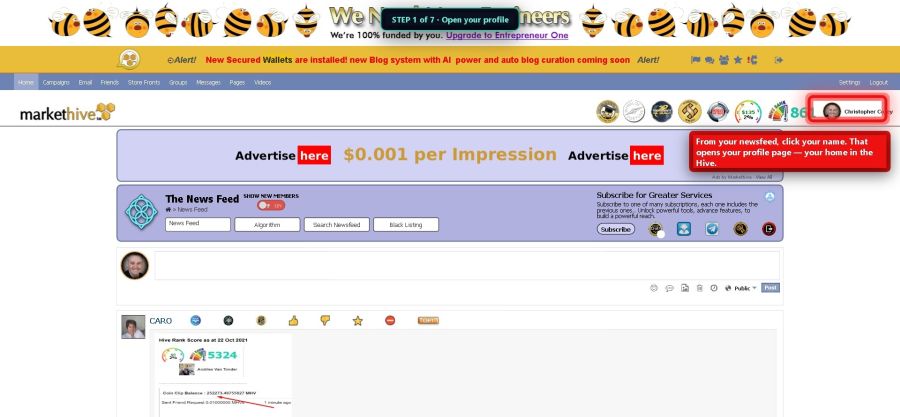
Step 1 - click your name

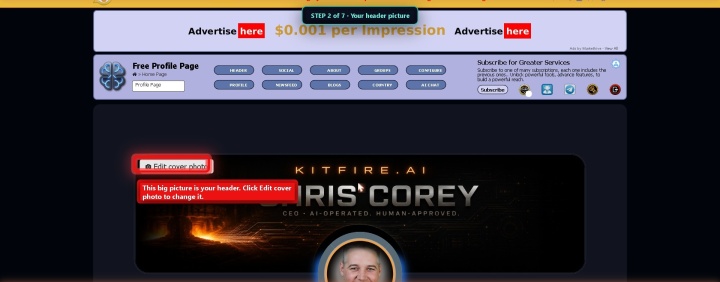
Step 2 — Your header picture

The big picture across the top is your header. It is the first thing people see when they visit you. Click Edit cover photo.
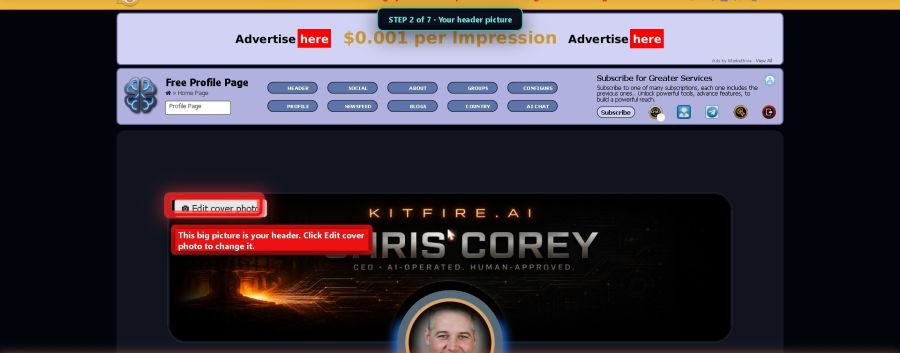
Step 2 - Edit cover photo

Step 3 — Pick your picture

Click Upload Image and pick a picture that feels like you — your business, your town, your passion. If it looks off, the same menu lets you Reposition it until it sits right.
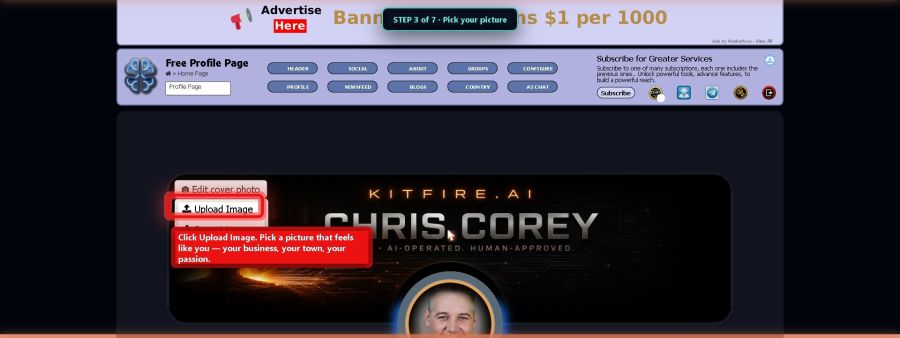
Step 3 - Upload Image

Step 4 — Your profile picture

The round photo is your face in the Hive. Click the little camera on it to change it. Use a real photo of you — people connect with faces, not logos.
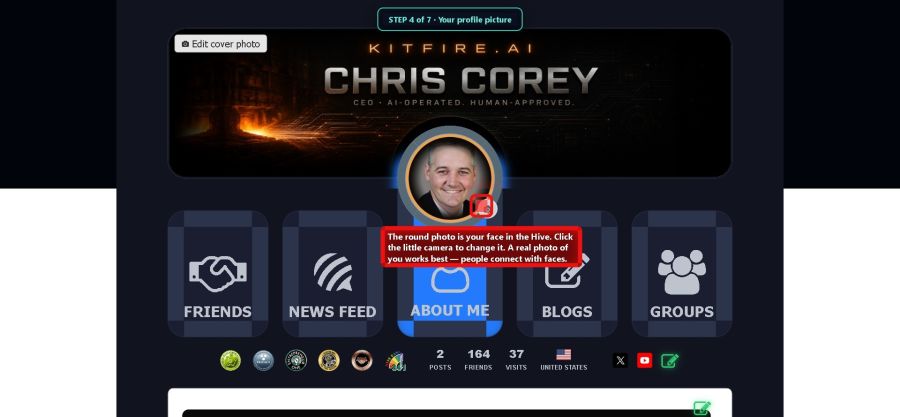
Step 4 - the camera on your photo

Step 5 — Find your bio

Scroll down a little and click the card that says ABOUT ME. This is where you tell the Hive who you are.
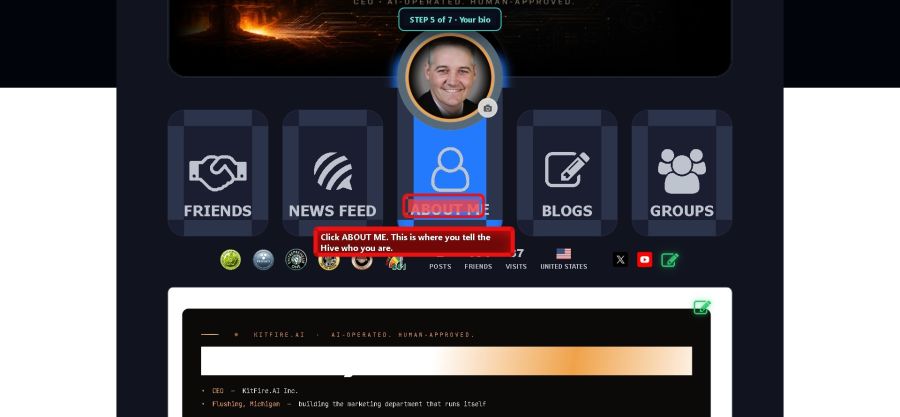
Step 5 - ABOUT ME

Step 6 — Open the editor

See the little pencil on the right? Click it, and your bio opens up ready to edit.
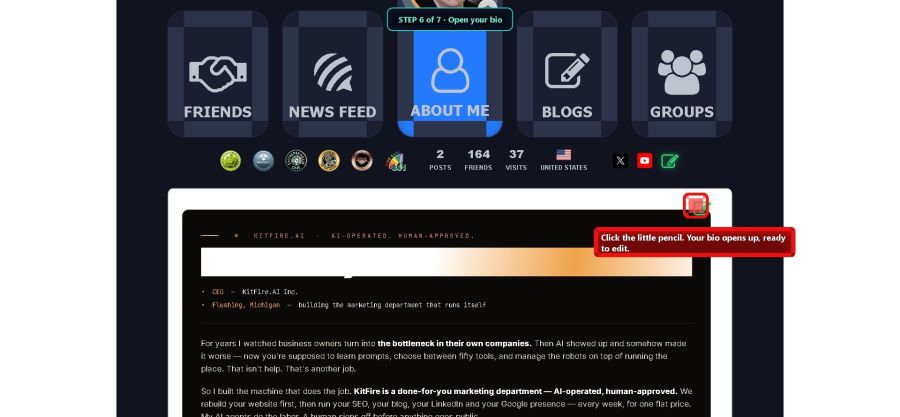
Step 6 - the pencil

Step 7 — Say hello and save

Write your hello. Say who you are, what you do, and why you joined. Talk like you talk — a few honest lines beat a fancy speech. Then click Save. Now the Hive knows it's you.
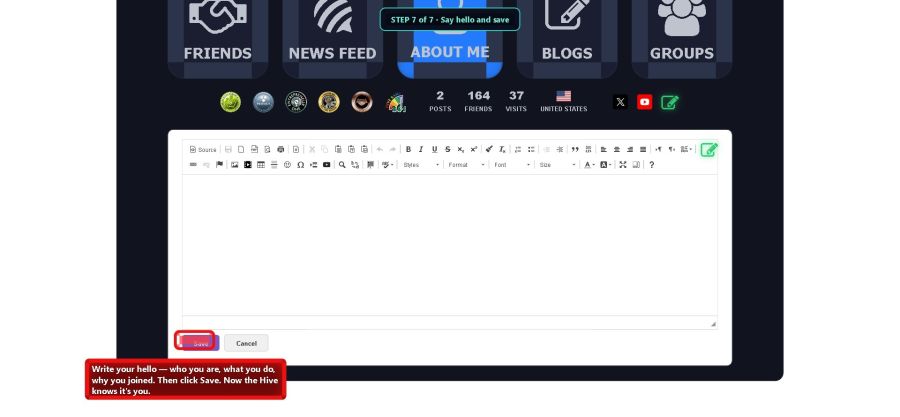

Step 7 - write and Save
Do this today: Put up a real photo of yourself, one header picture you like, and three lines in your bio — who you are, what you do, why you joined. That is a complete hello. Friend requests go up when people can see who they are saying yes to.
Next picture guide: Run Your Group's Meeting Room. · The Hive Academy · Chris Corey, CTO · S408