x




Seven little steps. Real pictures of the real screen. The red ring shows you exactly where to click.
Hi, I'm Chris — the Chief Technology Officer here at MarketHive. Here's something other platforms charge real money for: every MarketHive group has its own live video meeting room. Face to face, up to one hundred seats, built right in. If you run a group — or ever wanted to host your own weekly call — this guide is for you.
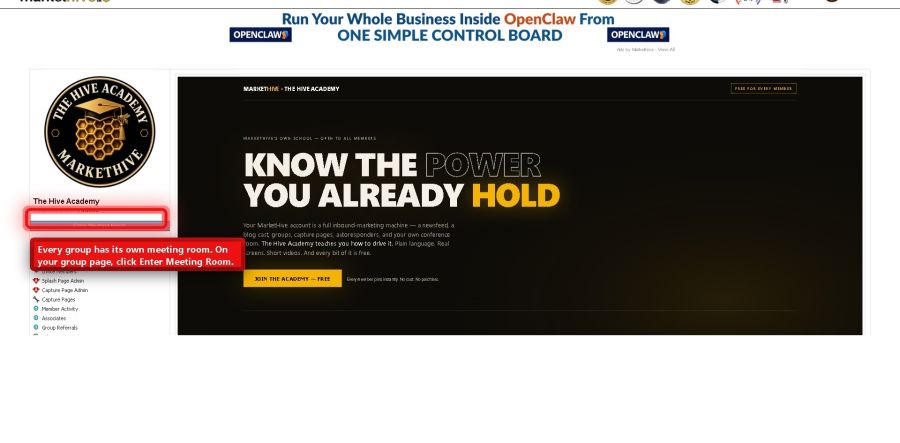
Go to your group's page and click Enter Meeting Room. That's it — you're in. No downloads, no setup.
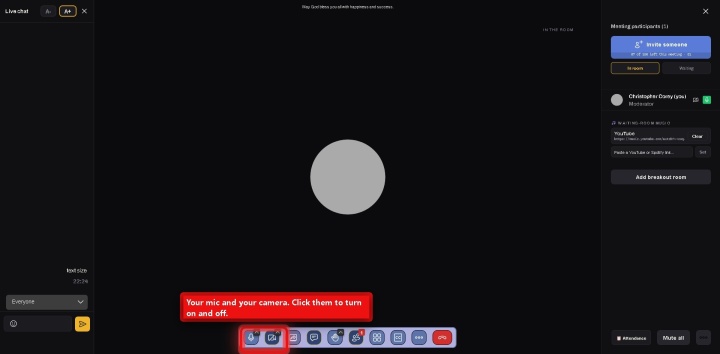
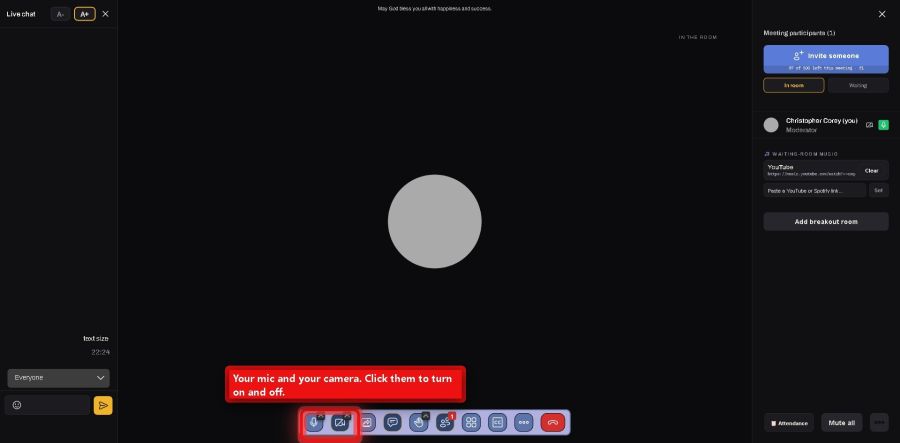
Down at the bottom is your toolbar. The first two buttons are your mic and your camera. Click them to turn on and off.
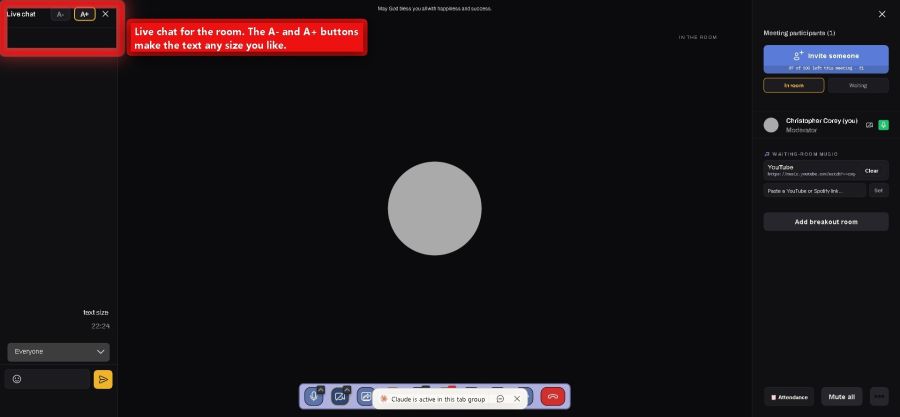
On the left is the live chat for everyone in the room. See the little A− and A+ buttons? They make the chat text any size you like.
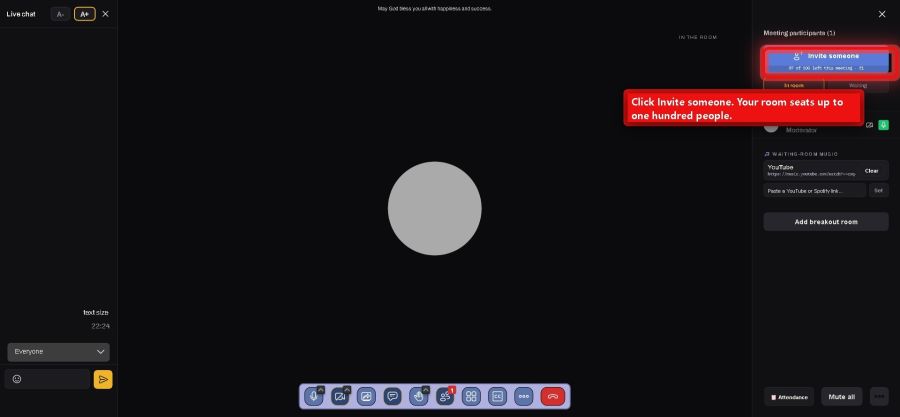
Click Invite someone in the panel on the right. Your room seats up to one hundred people.
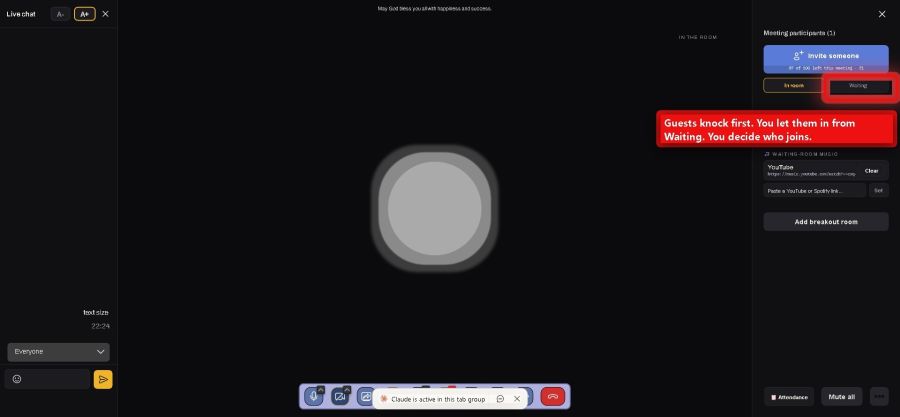
Guests knock first. They wait in the Waiting list until you let them in. You decide who joins your meeting — always.
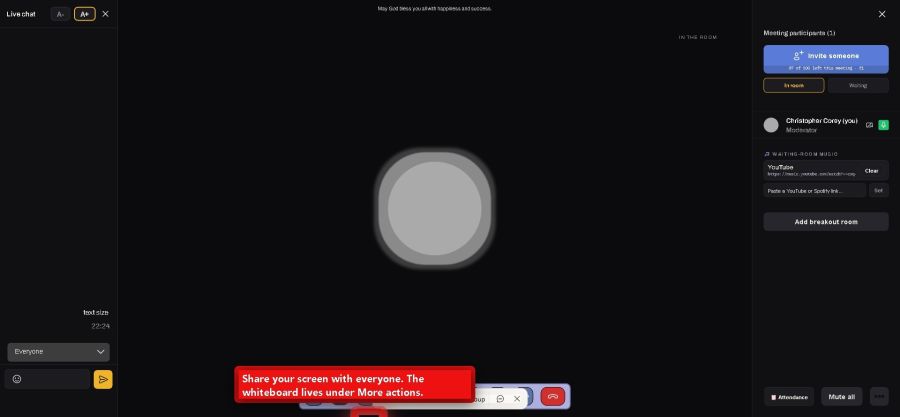
Want to show something? Click share your screen. And under More actions there's even a whiteboard everyone can draw on together.
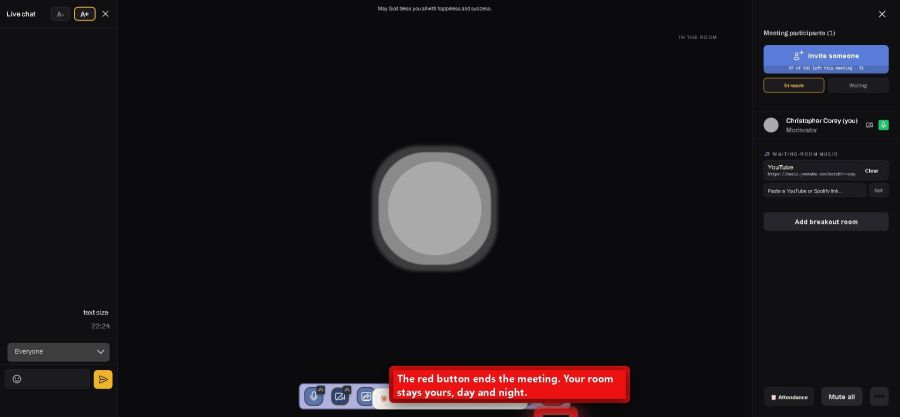
When you're done, the red button ends the meeting. Your room stays yours — day and night, free with your group.