x
Black Bar Banner 1
x

NEW: About Me Look — turn on a full-width dark About Me from your profile Configuration (Profile Page Upgrade). The Academy, profile feeds and Media Feed now read like the News Feed. See Subscriptions »

New: AI Blog Autopilot — free for the next 30 days. Switch it on by November 15th »

NEW: Smart Mail is live — free for every member. Send broadcasts, build lists and run autoresponders. Open Smart Mail »

New training: The Campaign Map. Watch it now »

A+ A−
Ads by Markethive - View All
The Blog Feed
The Blog Feed
» Blog Feed
Write a New Blog Post
Search Blog Status
Most Viewed
Most Recent
Most Shared
Alphabetical
Markethive Blog (default)
My Blog Posts
Friends' Blogs
Blog Categories
All
Advertising
Blockchain & Cryptocurrency
Business Development
Diet & Weight Loss
Environmental
Health and Wellness
History and Culture
Home and Garden
Marketing
Mentoring & Training
Money & Finance
Other
Political
Prayer & Religion
Programming & Technical
Real Estate
Search Engine Optimization
Social Media
Spirituality
Sports & Recreation
Transport
Travel & Events
Website Design
Blogging Tools & Assets
My Blog Info
Members Subscribed to You
Blogs You Are Subscribed To
Website Widget
Wordpress Plugin
Subscribe for Greater Services
Subscribe to one of many subscriptions, each one includes the previous ones.. Unlock powerful tools, advance features, to build a powerful reach.

Gmail : Schedule an email to send later

Posted by Melody Christie on January 26, 2022 - 4:14am


Ever needed to send an urgent email but didn't actually want to get up and do it right then? Or perhaps you know you'll be deep-sea diving when that email needs to go out next week and you're headed to a place with no Wi-Fi? Well, you should try Gmail’s scheduling feature. 

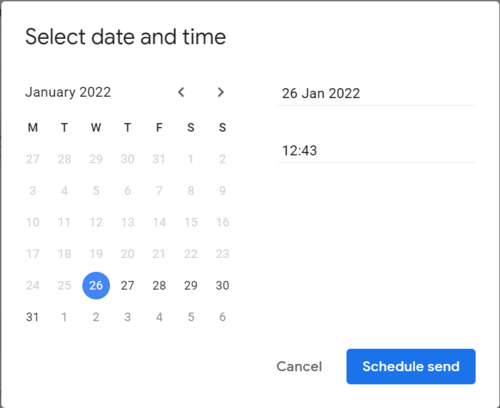
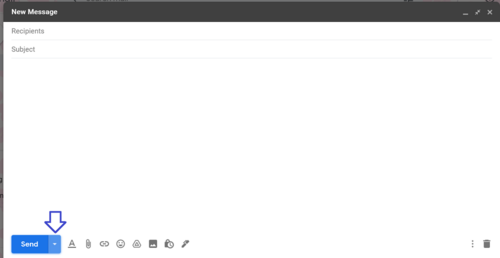
Go ahead and compose your email and add any attachments you need but don't click the "Send" button. Instead, click the little arrow/triangle next to the “Send” button and then select your preferred time and date for the email to go out.
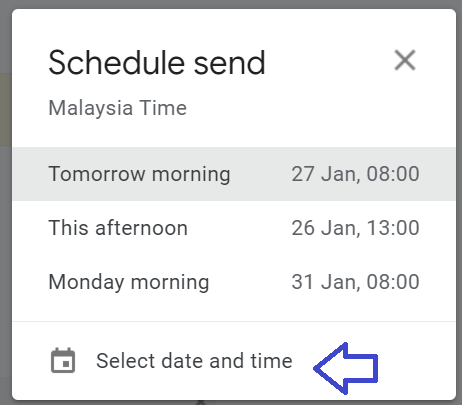
Once done, click the “Schedule Send” button and the email will send itself without you having to leave the ocean ;)

If you ever need to edit the text/attachments, etc. you will find it in your "Scheduled" folder. 

You will need to click the "Cancel Send" button and then proceed to edit your email. Then don't forget to schedule it again.

I find this to be a great help when it comes to managing my time. I hope you do too.