
x
Black Bar Banner 1
x

NEW: About Me Look — turn on a full-width dark About Me from your profile Configuration (Profile Page Upgrade). The Academy, profile feeds and Media Feed now read like the News Feed. See Subscriptions »

New: AI Blog Autopilot — free for the next 30 days. Switch it on by November 15th »

NEW: Smart Mail is live — free for every member. Send broadcasts, build lists and run autoresponders. Open Smart Mail »

New training: The Campaign Map. Watch it now »

A+ A−
Ads by Markethive - View All
The Blog Feed
The Blog Feed
» Blog Feed
Write a New Blog Post
Search Blog Status
Most Viewed
Most Recent
Most Shared
Alphabetical
Markethive Blog (default)
My Blog Posts
Friends' Blogs
Blog Categories
All
Advertising
Blockchain & Cryptocurrency
Business Development
Diet & Weight Loss
Environmental
Health and Wellness
History and Culture
Home and Garden
Marketing
Mentoring & Training
Money & Finance
Other
Political
Prayer & Religion
Programming & Technical
Real Estate
Search Engine Optimization
Social Media
Spirituality
Sports & Recreation
Transport
Travel & Events
Website Design
Blogging Tools & Assets
My Blog Info
Members Subscribed to You
Blogs You Are Subscribed To
Website Widget
Wordpress Plugin
Subscribe for Greater Services
Subscribe to one of many subscriptions, each one includes the previous ones.. Unlock powerful tools, advance features, to build a powerful reach.

WhatsApp : How to send your location to a contact

Posted by Melody Christie on January 03, 2022 - 5:16am


Did you know that WhatsApp allows you to send your location to a contact? 

Note : Your phone's "Location" settings must be turned on for this to work. 

This is very useful if you're meeting a friend somewhere (and either one of you is not exactly sure where that is).

You also have the option to select "Share Live Location" - this is especially helpful in an emergency or if you need rescuing! Share Live Location allows your selected contact to see your Live Location for the duration of time that you choose so they can track you down. The duration intervals are set at 15 minutes, 1 hour or 8 hours.

Here's how to do it.

A) iPhone 
1. Open WhatsApp on your iPhone.

2. Tap on the "Chats" tab, if it's not already selected.

3. Tap on the group or person that you want to share your location with.

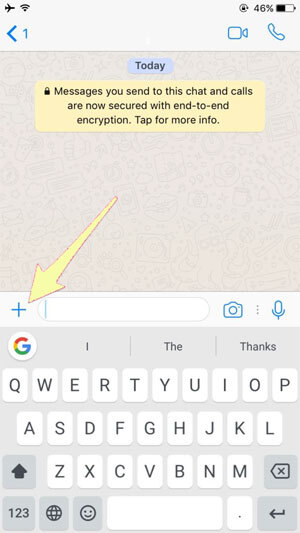
4. Tap on the plus (+) sign in the bottom-left corner.

5. Tap on "Location." 

6. Select whether you want to share your location always or "Only While Using the App."

7. Select "Send Your Current Location" or "Share Live Location."

  • If you choose to send your current location, it will just send a pin of where you are right now.
  • Sending your live location will update your location as you move for the duration that you choose. 


B) Android

1. Open WhatsApp on your device.

2. Tap on the "Chats" tab, if it's not already selected.

3. Tap on the group or person that you want to share your location with.

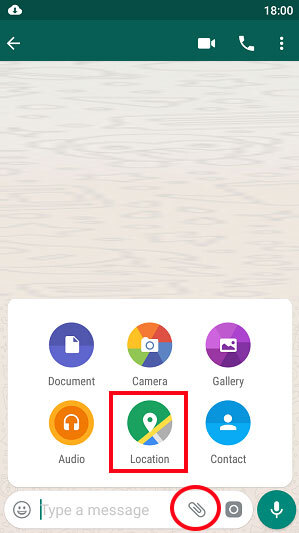
4. Tap on the paperclip icon at the bottom of the screen (beside the area where you would normally type your message).

5. Tap on the Location icon.

6. Just like on iPhone, you can either select "Send Your Current Location" or "Share Live Location," which will update your location as you move.

7. Tap "Send."

Go ahead and try it out now!