x




WordPress powers more than one third of all websites on the Internet, according to W3Techs.com. So, “What is WordPress?” is a great question to ask, especially when you’re new to blogging and building websites.
It’s also a great question if you’re an experienced webmaster who has never had the opportunity to use the WordPress platform.
Very simply, WordPress is a free software tool that helps you build a website or blog.
WordPress has a whole ecosystem of plugins and customizable themes, which we’ll get into in more detail in a moment.
The best way to fully appreciate this simple answer is to understand the primary purpose of WordPress software.
WordPress is designed to allow people (and organizations) to publish content.
The content can include text, audio, video and graphics or images. Because the amount of content can become quite large (i.e., dozens or hundreds of articles), WordPress also provides features and functionality for “managing content.”
WordPress is classified as a content management system (CMS) and is the most popular CMS available on the market.
CMS – A system designed to manage the content of a website or other electronic resource that is used collaboratively by a number of people – Oxford Dictionary
A CMS has the following core features and functions:
Many popular business sites (e.g., BBC America, Sony Music, The Walt Disney Company, Vogue) use WordPress to publish articles in a traditional blog-type approach.
Because WordPress is so flexible, it’s also used for:
WordPress is designed and built as a “framework” comprised of software (code) that’s categorized as “open source.”
Open source software is code that’s freely available and fully documented to allow other developers to support and extend it.
WordPress uses a database to store content and settings associated with your site. However, you don’t access the database directly to create and manage your site. Instead WordPress provides a handy dashboard for you to use.
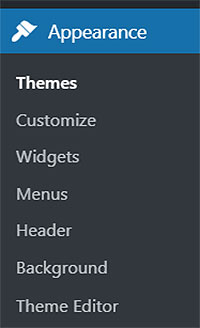
The WordPress dashboard is the main administration area of your WordPress site, also known as the admin area or back end.
Let’s explore the key components of your WordPress site, accessed via the dashboard.
Themes – A theme determines your site’s basic design and functionality. You must choose a WordPress theme as part of your site setup.
Free themes created by the WordPress team are included in your WordPress installation. Thousands more are available free from the WordPress repository (i.e., WordPress.org), and many more are available for purchase (i.e., from a theme developer or theme directory).
To access themes on your dashboard, look on the left hand menu under Appearance.
Plugins – Your WordPress site can include additional features and functionality offered as “add-ons.” These add-ons (plugins) are “modular,” meaning they can be easily installed and activated.
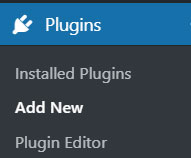
You can find thousands of free plugins on WordPress.org, which are directly accessible and ready to download / activate via the plugin’s Add New menu option.Plugins work alongside your active theme.
It’s possible, however, that activating a WordPress plugin will cause problems for your site, due to conflicts with other plugins or the theme you’re using. If that’s the case, you’ll have to deactivate and then uninstall the offending plugin.
Posts – Your WordPress content can be published as a “post.” Essentially, a post is an article of content containing any combination of text, graphics, video and audio.
A WordPress post also has specific publishing information associated with it — this information is called “metadata,” which is used by WordPress to help classify or categorize the content.
Use WordPress posts to publish content that’s time-sensitive. Think, newspaper article.
Pages – WordPress content can also be published as a “page.” Similar to a post, a page has content containing any combination of text, graphics, video and audio, however the content is not time-sensitive.
Think of a WordPress page as an option for publishing content that’s more “evergreen” or “everlasting.” Common examples of a WordPress page are:
If you’d like to explore the various ways you can sort, categorize, and present the content of your WordPress site and the resulting benefits, read our article about website architecture.
Media – This is the library of non-text-based content such as images, graphics, video, audio, downloadable files (e.g., PDFs).
Settings – This is where you configure basic information about your site, such as Site Title, Site URL, Language, Time zone, Date and Time format.
Users – This section lists all of the registered users and their role on your site. Each role has a specific set of permissions controlling what users in that role can and cannot do.
Here’s a summary of user roles and their permissions:
Administrator – has access to all the administration features including installing/activating themes and plugins, deactivating/uninstalling themes and plugins, creating and modifying users, and lots more super powers. Be very careful about creating new users with this level of permission on your WordPress site.
Editor – can publish and manage posts/pages, including those written by other users.
Author – can publish and manage their own posts/pages.
Contributor – can write and manage their own content but cannot publish it.
Subscriber – can only manage their profile information and view content.
There are two options to get WordPress.
Option 1 – sign up to the hosted version of WordPress via WordPress.com. The primary benefit for using WordPress.com is your website is hosted by Automattic (the makers of WordPress) and optimized for WordPress so it’s secure and speedy.
There are many notable brands using WordPress.com, such as TED, TechCrunch and Spotfiy. You can read more stats about WordPress.com here.
Option 2 – self-host WordPress by installing the WordPress software code on your own domain name. This is commonly referred to as the WordPress.org version. The primary benefit for self-hosting is you will have full control of your content without restrictions. WordPress.com has limits on which themes and plugins you can use.
Let’s review each option in a bit more detail.
Similar to other online website builders (e.g., Squarespace, Wix, Solo Build It!), you set up an account and pay any associated fees for your hosted WordPress website. Although WordPress.com is free to use, you’ll pay for features such as:
You can install WordPress directly on your domain name usually via your hosting control panel. Many hosts offer 1-click installation to make it easy to install and set up WordPress. If your host doesn’t offer this type of feature, you can opt to manually install WordPress via a file transfer program such as FileZilla or Cyberduck.
Note: this would require some technical knowledge, so make sure you have a list of the steps needed to achieve a successful installation or get help from a professional.
Thanks to the success of WordPress in the market, there’s increasing demand from website owners to expand WordPress’s core capabilities. And with an ever-growing developer community, new themes and plugins offer a rich choice of design and function elements that make each WordPress site truly unique.
Nowadays, WordPress is generally considered to be a website development platform, moving beyond its traditional “blog” heritage.
If you’d like to use WordPress to build a profitable online business, check out Solo Build It! for WP. You’ll get a step-by-step Action Guide, keyword and niche research tools and hundreds of business-focused resources.