x




Six little steps. Real pictures of the real screen. The red ring shows you exactly where to click.
Hi, I'm Chris — the Chief Technology Officer here at MarketHive. I took these pictures on my own screen tonight. Follow the red rings and you can't get lost.
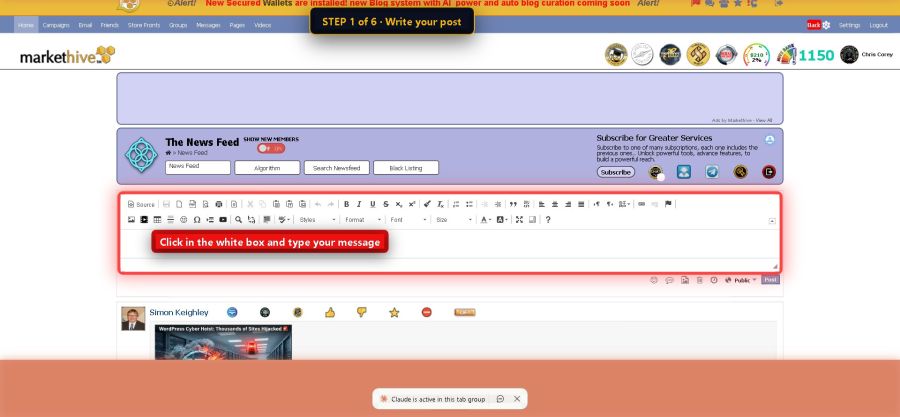
Go to your News Feed. See the white box at the top? Click inside it and type what you want to say. That's it. Just like writing a note.
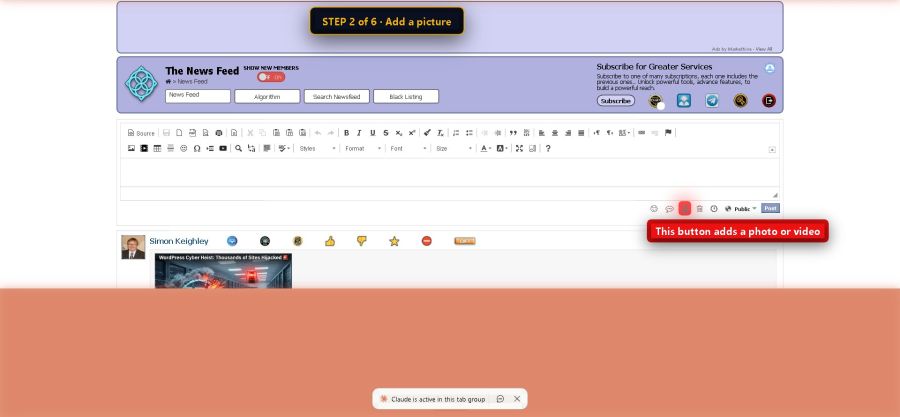
Under the writing box there is a little row of buttons. The one in the ring adds a photo or a video from your computer. Posts with pictures get more attention.
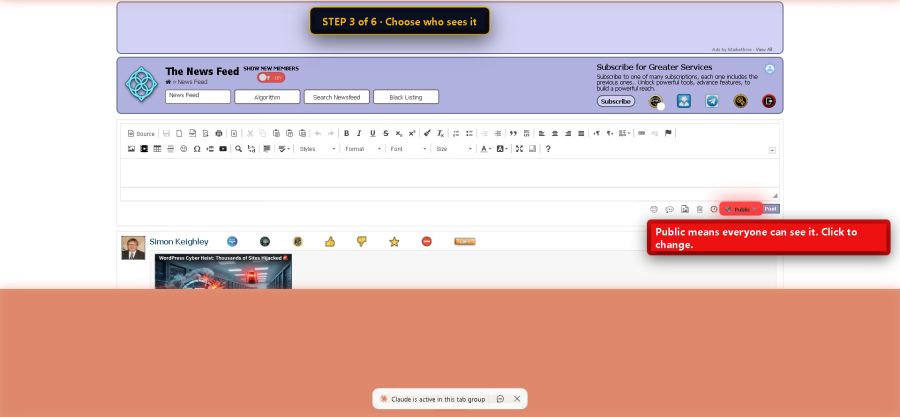
Next to the Post button there is a little menu that says Public. Public means everyone can see your post. Click it if you want to change that to Members only.
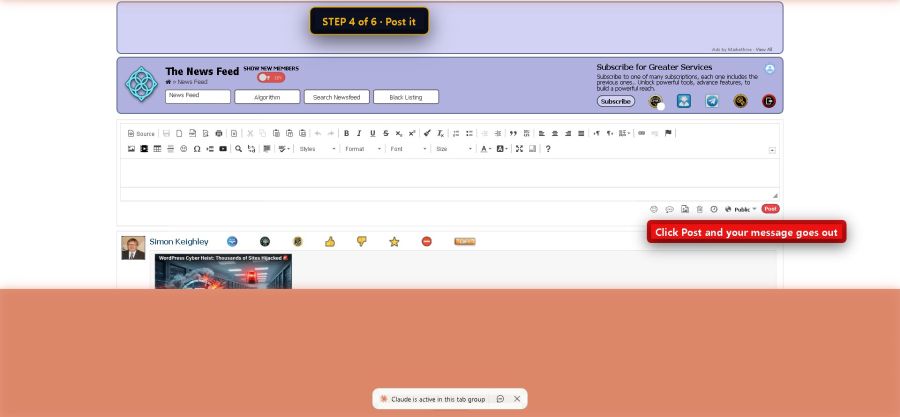
Click the blue Post button. Done! Your post is now on the feed for your friends to see.
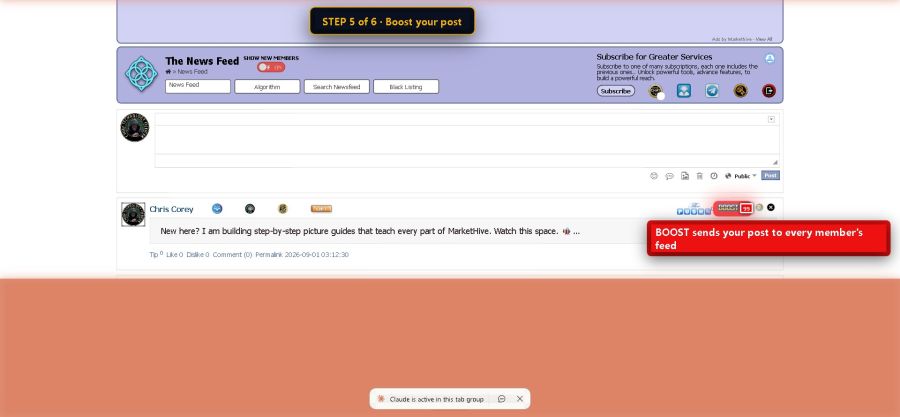
Look at your post after it goes up. In the top corner you'll see the BOOST button with a number next to it. That number is how many boosts you own. Click BOOST and your post jumps to the top of every member's feed — not just your friends. One click, whole community.
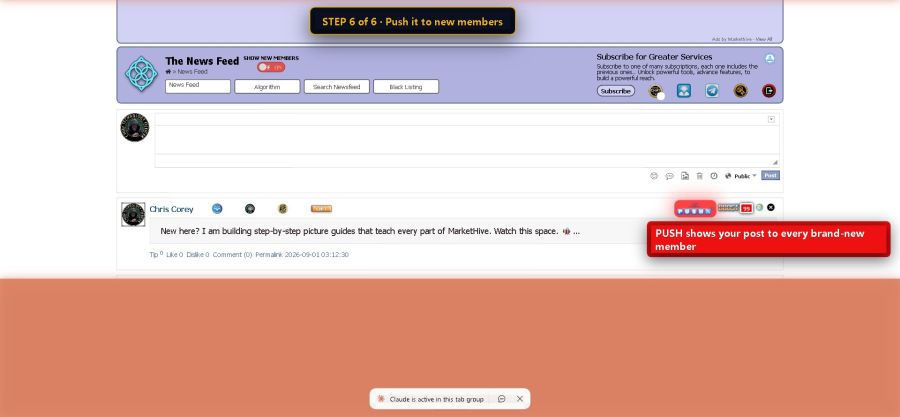
Right next to BOOST is PUSH. This one is special. When somebody brand new joins MarketHive, they don't have friends yet — so their feed starts out empty. Pushed posts are what new members see first. Push your best post, and every new arrival meets YOU on day one.