x





Four little steps. Real pictures of the real screen. The red ring shows you exactly where to click.
Hi, I'm Chris — the Chief Technology Officer here at MarketHive. If the words on your screen ever feel too small, this guide is for you. MarketHive now has text size buttons built right into the page. No browser tricks, no settings menus — two buttons, and the whole page grows.
Watch it in under a minute, or scroll for the pictures:
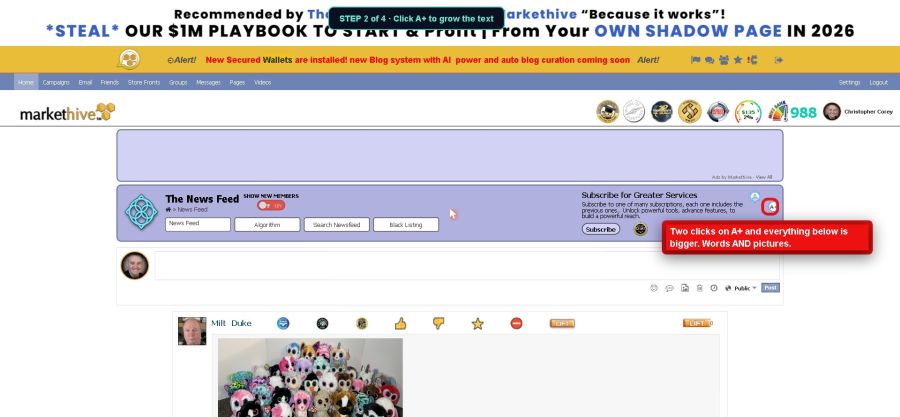
Go to your News Feed. Look at the far right edge of the blue band, next to the round icons. See the two little round buttons stacked on top of each other? A+ on top, A− below it. Those are your text size controls.
Click A+ once, and everything below gets one step bigger — the words AND the pictures, together. Click it again for another step. Five clicks takes it half again as big. No squinting, no hunting for your glasses.
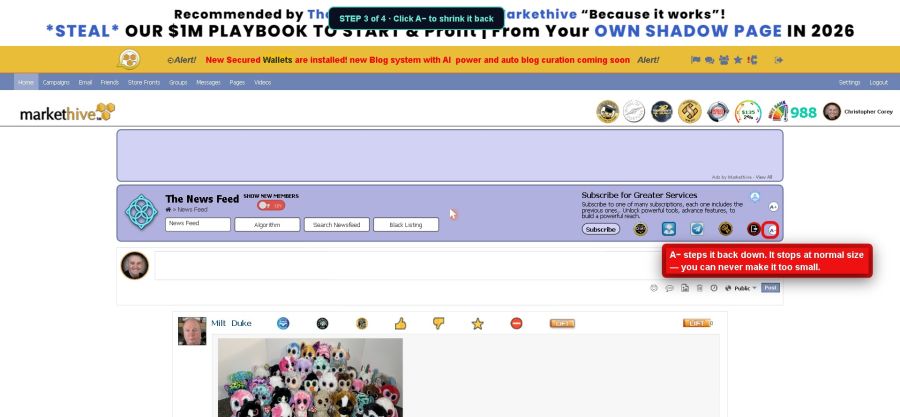
Too big? Click A− and it steps right back down. It always stops at normal size, so you can never make it too small. Play with it until it feels right to you. You cannot break anything.
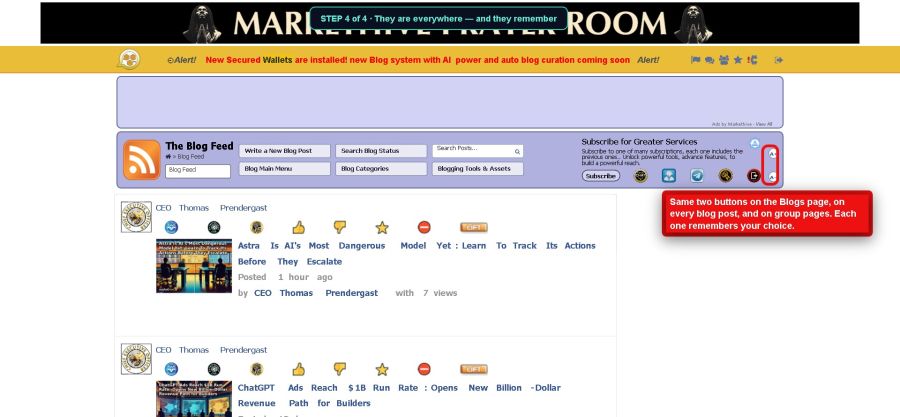
These buttons live all over MarketHive: the News Feed, the Blogs page, every blog post, and group pages too. And here's the nice part — each one remembers your choice on your own device. Set the feed bigger on your computer, and it stays bigger every time you come back. Your phone keeps its own setting. Nobody else's screen changes — only yours.